
New platform guide

Guiding you through the new Nucleus Platform
We’ve created some useful information to support you in familiarising yourself with the new Nucleus Platform.
Logging in to the new Nucleus Platform
If you currently access James Hay Online:
If you have an active account (i.e. you’ve used it within the last 12 months) log into it as usual at jameshay.co.uk/portal using your existing login details.
You’ll then be guided through the process to register for the Nucleus Platform.
Please note, your username will be displayed on screen when you register. Keep a note of this as you’ll need it to access your account. You’ll also get a reminder email and letter in the post with your username, once you register.
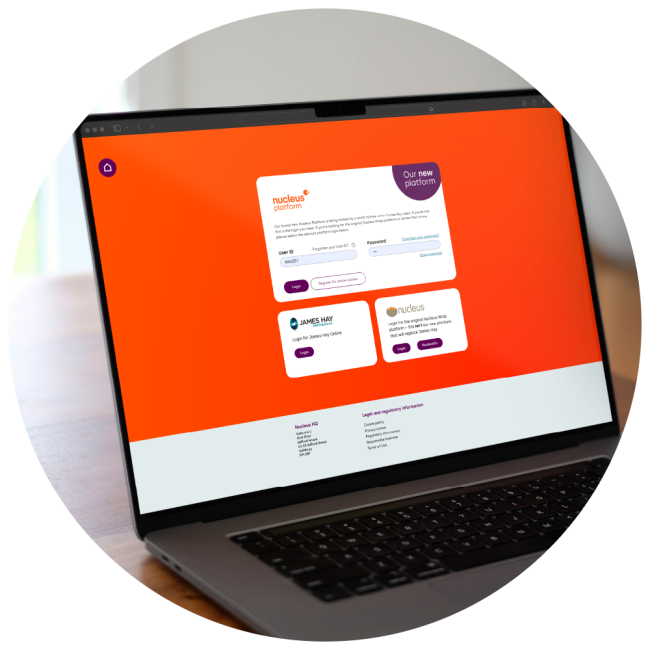
If you don’t currently have access to James Hay Online:
- Visit platform.nucleusfinancial.com and select Register for online access.
- Then select If this is your first time registering for customer portal access.
- Enter your details, then select Register.
- If your details match our records, an account activation letter will be sent to your address.
Once you receive this letter, return to the new Nucleus Platform registration page and select I’ve started the registration process and received a code to complete my registration. You’ll be guided through the process from there.
Please note, during the registration process you’ll be prompted to enter a password. Your username will be displayed on screen at this time. Please keep a note of this as you’ll need it to access your account. You’ll also get a reminder email and letter with your username in the post, once you register.
Forgotten password
If you’ve forgotten your password you can follow the below steps to get you back into your account:
- Select the ‘Forgotten your password?’ link on the login screen
- Enter your username and select ‘Next’
- You’ll receive an email containing a link to reset your password – select the link
- A new window will open where you can confirm your new password
- You’ll be sent a one time password to your email address
- Enter the one-time password on the screen
- You'll then see a message confirming your password has been successfully updated and prompting you to move to the login page.
Expired password
If your password has expired, you can follow the below steps to reset your password and get you back into your account:
- After you’ve tried to log in using your existing details, you’ll be prompted to reset your password
- Enter your old password and then your new password
- You'll then see a message confirming your password has been successfully updated and prompting you to move to the login page.
Platform overview
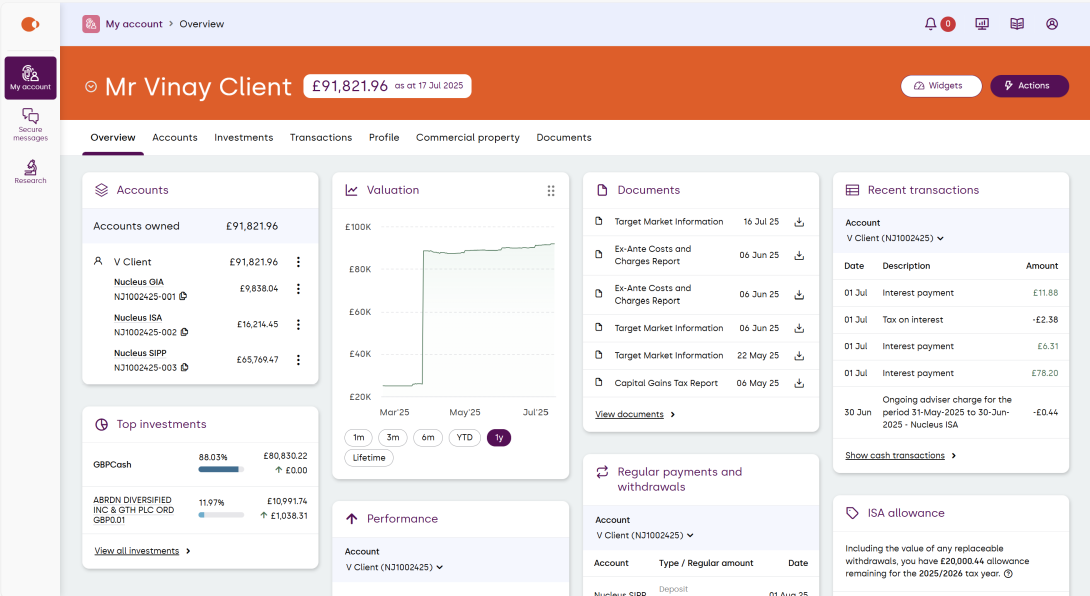
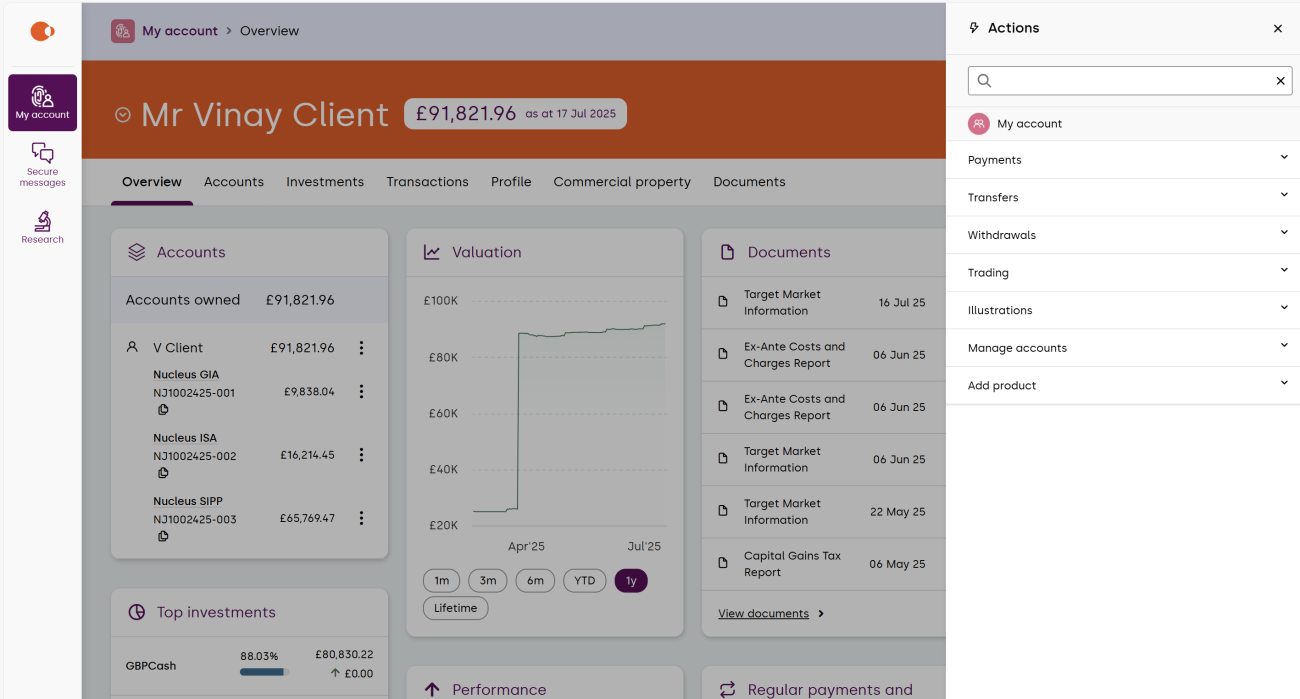
When you login you’ll be directed to your account overview with fully customisable widgets. From here you’ll be able to view everything about your account and take actions, such as make payments and view documents.
Using the icons at the top right you can:
- view your notifications
- check the service status of the platform
- access our literature library
- make changes to your profile
Below is an example of what you can see in your account overview.
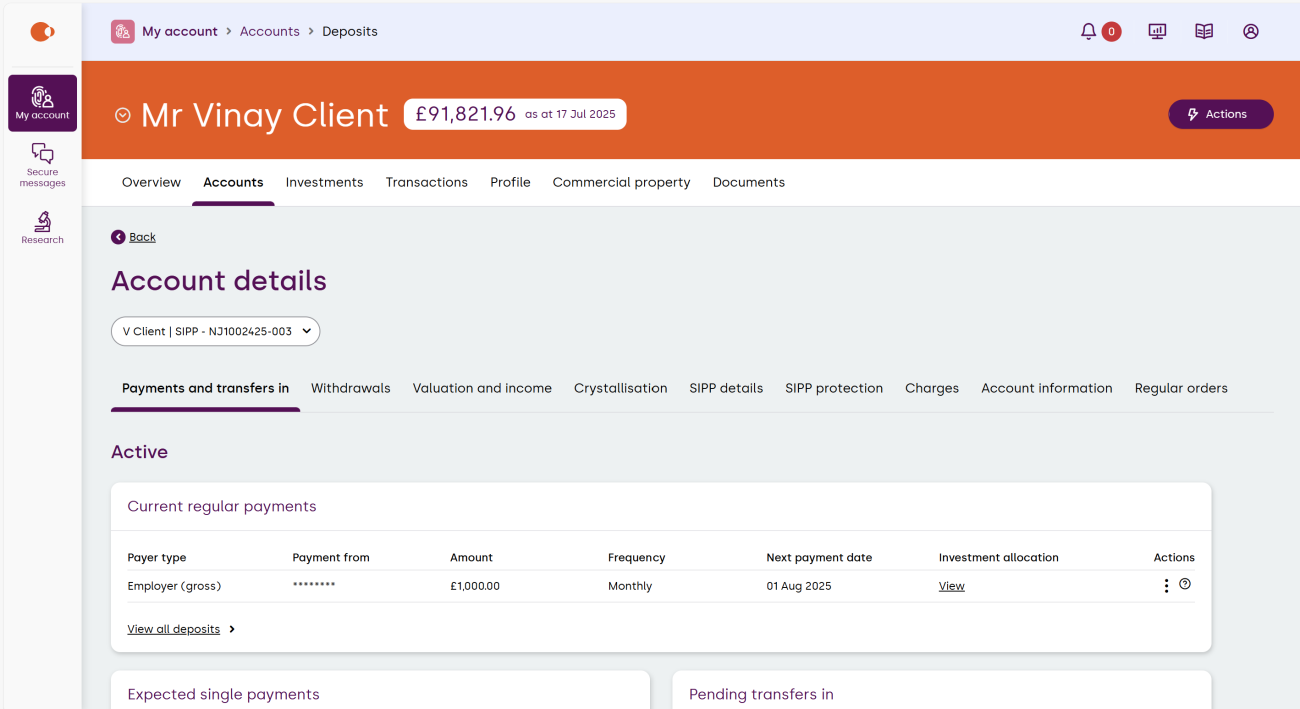
Accounts
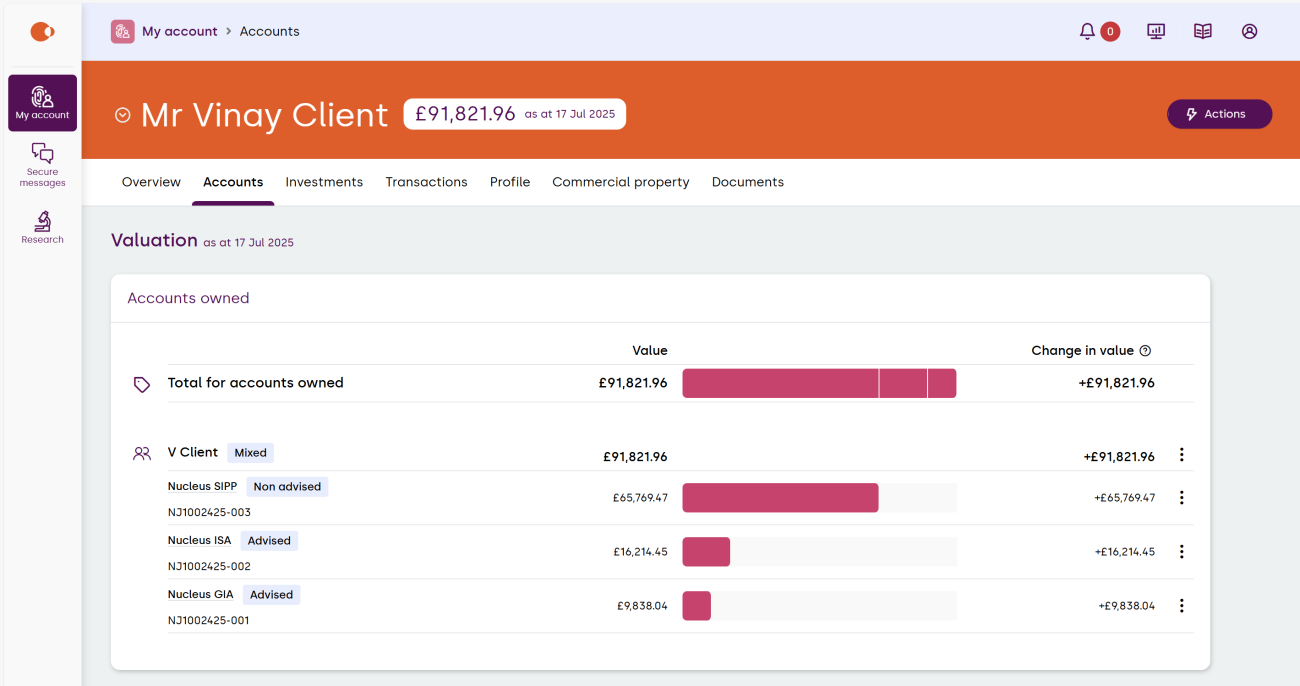
Here you’ll be able to see the valuation of the accounts that you own, as well as any linked accounts. Selecting the product will give you further account details.
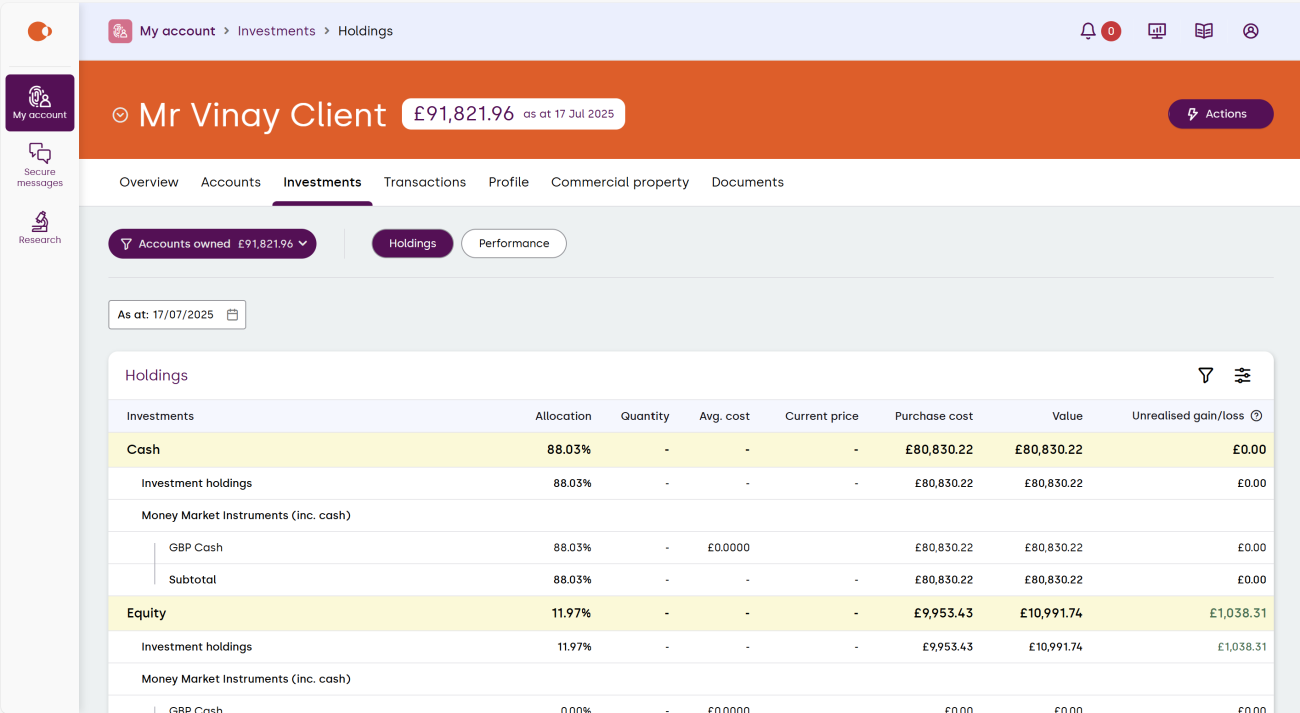
Investments
The Investments tab will show you your holdings and performance.
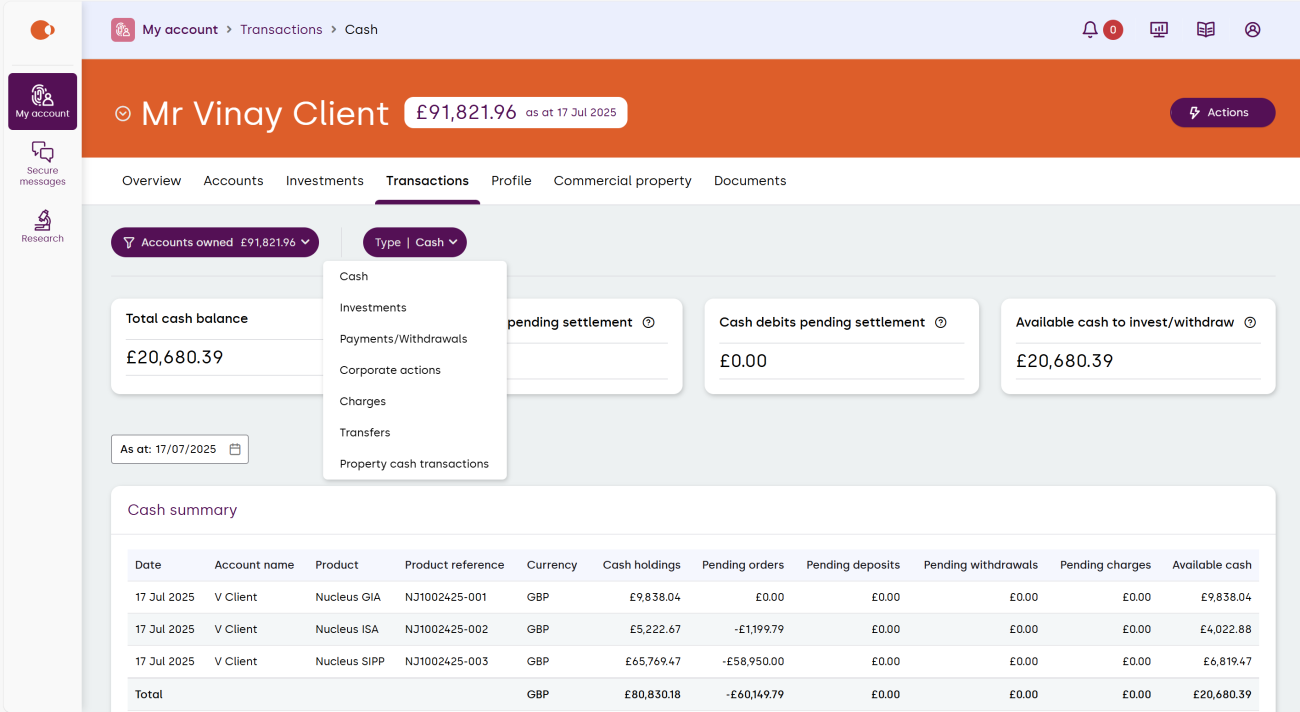
Transactions
You’ll be able to view all the transactions related to your account. The type of transaction can be changed from the drop down.
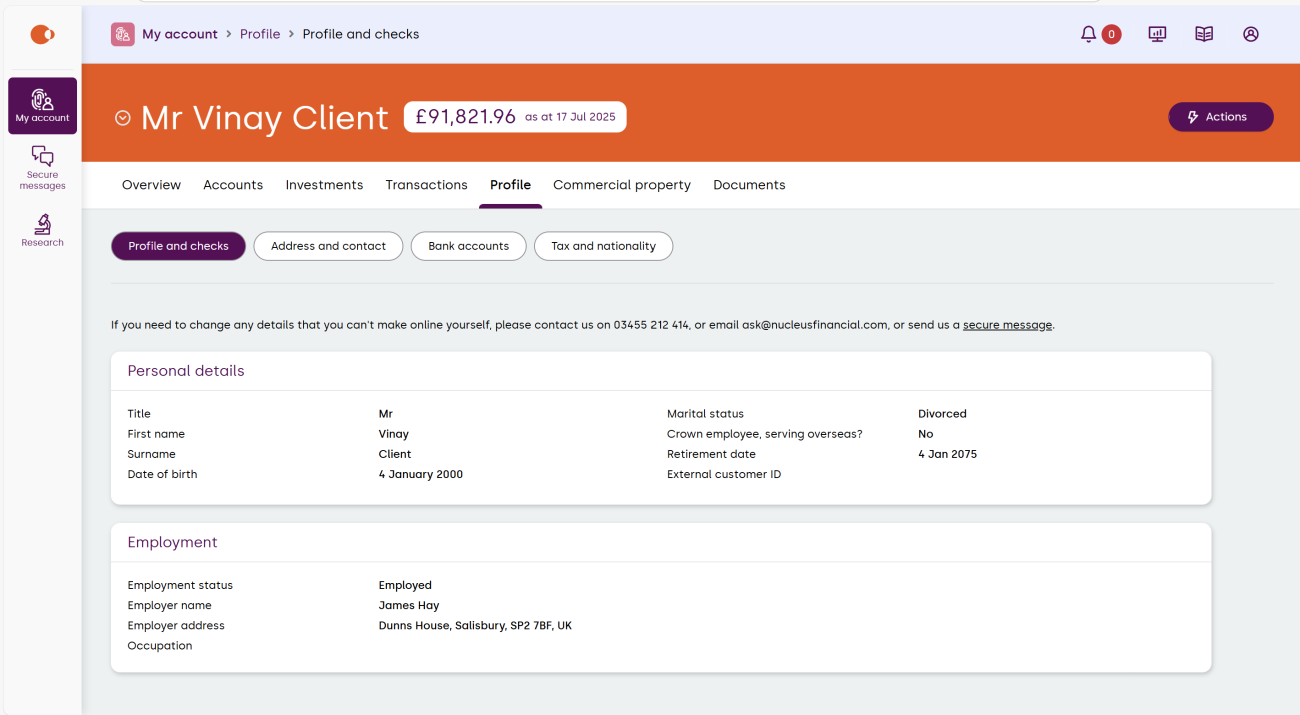
Profile
Here you can view and update a variety of your information, such as personal details, tax status and bank accounts.
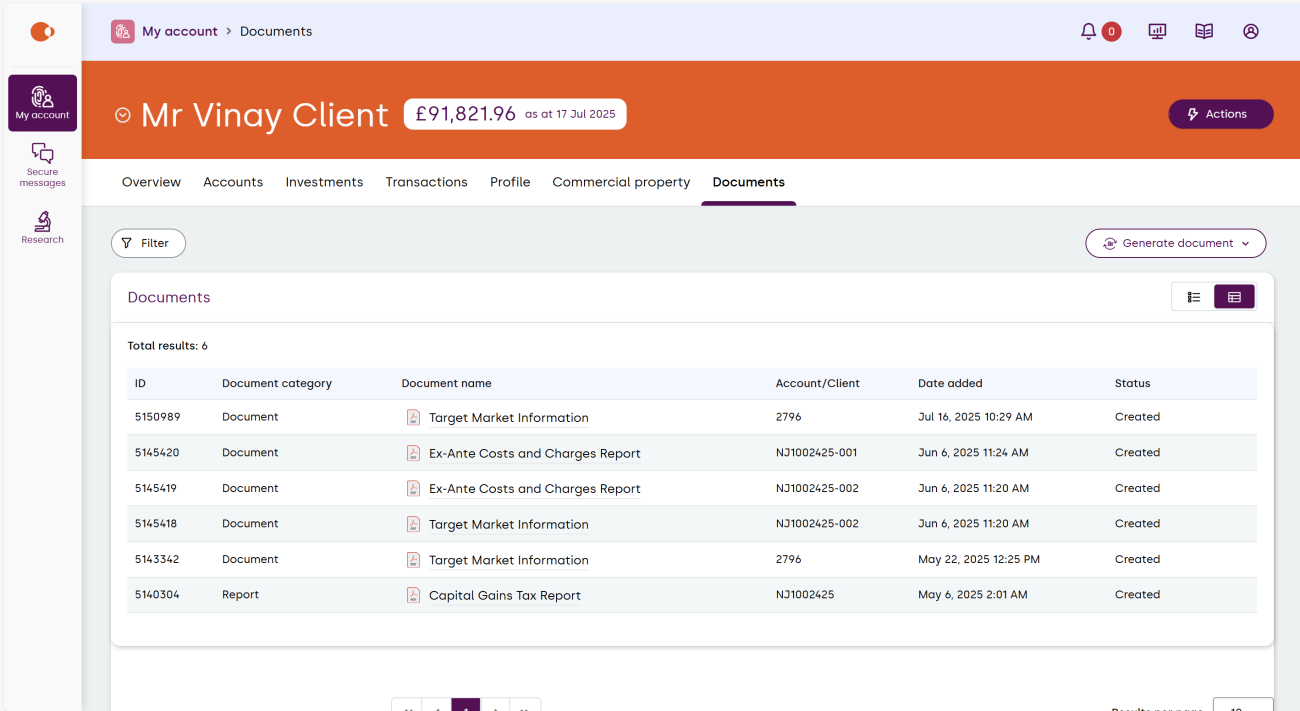
Documents
The documents tab will allow you to view and download all documents associated with your account(s), with ability to filter by date and account.
Profile
From your user profile you can update your password, email address and mobile number.
Update your password
- Enter your current password
- Enter your new password
- Confirm your new password
- Select ‘Update’
Update your email address
- Enter your current password
- Enter your new email address
- Confirm your new email address
- Select ‘Update’
Update your mobile number
- Enter your current password
- Select the country code for your mobile number
- Enter your new mobile number
- Select ‘Update’
Research
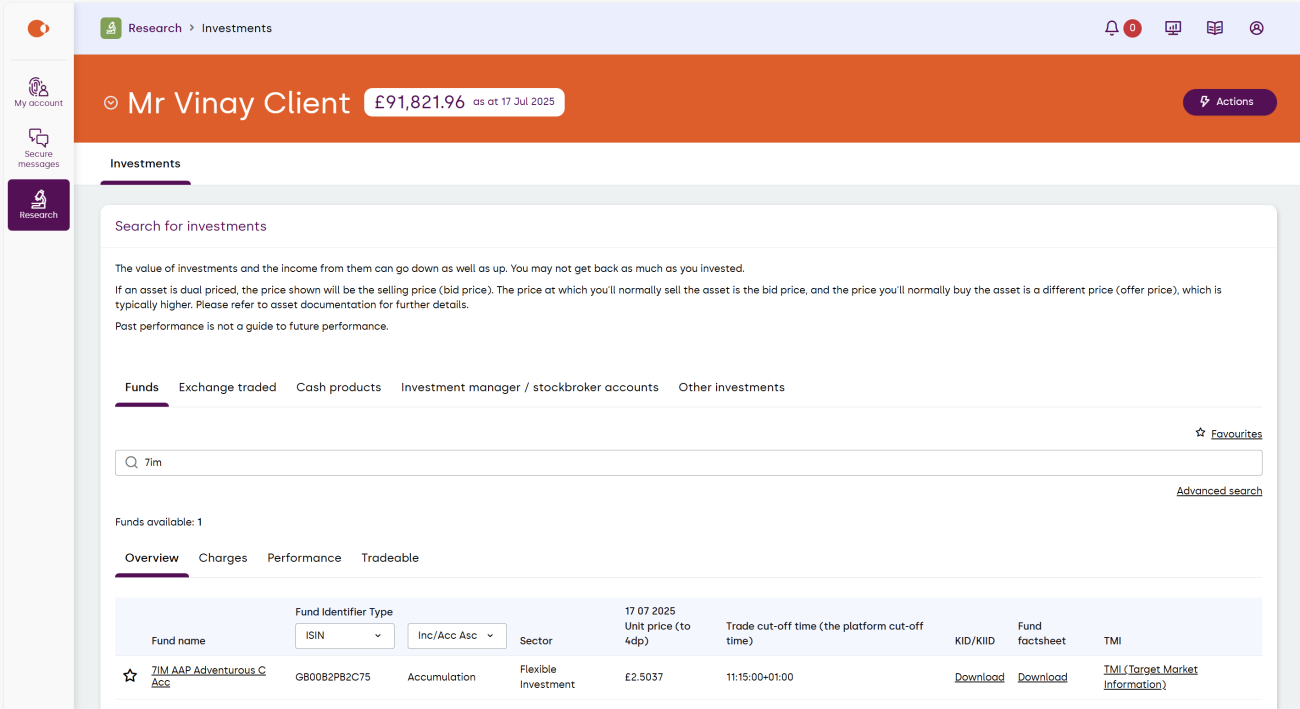
The research application enables you to search for investment information for funds, Exchange Traded Instruments (ETIs), cash products, Investment manager / stockbroker accounts and other investments.
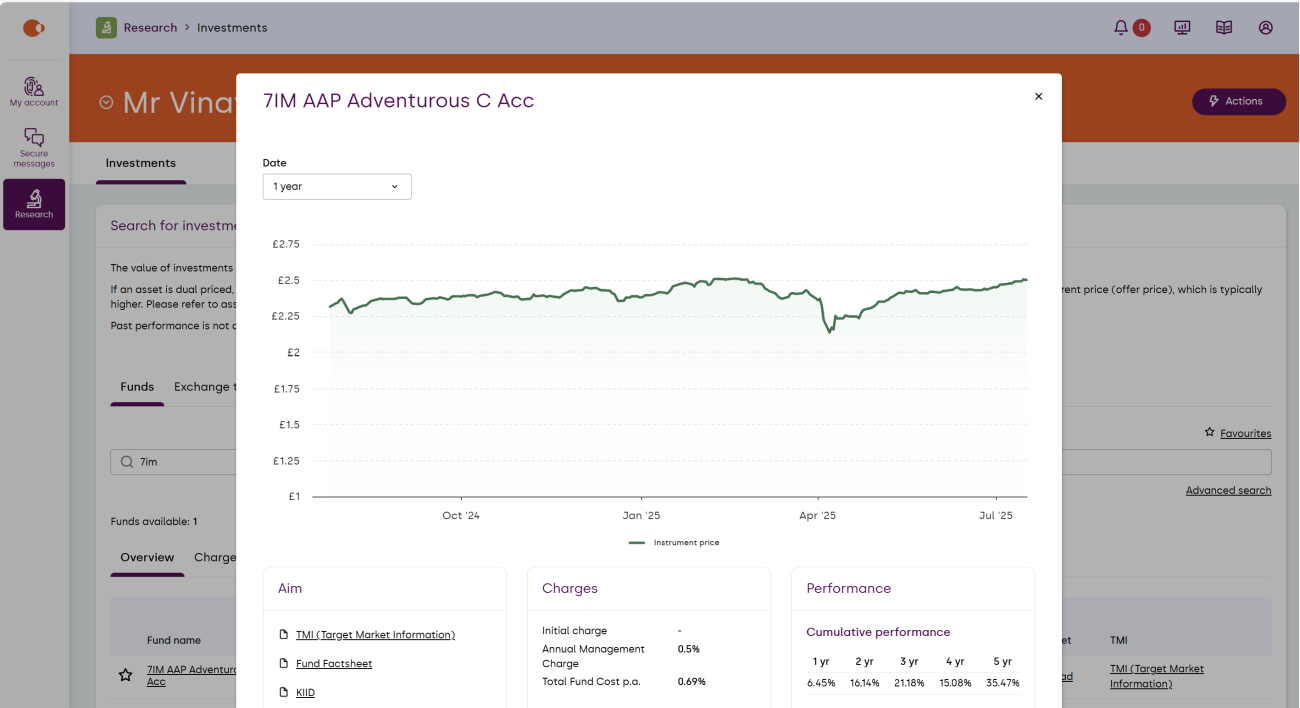
You can view/download the ‘Key Information Document (KID)’ / ‘Key Investor Information Document (KIID)’, ‘Fund factsheet’ and the ‘Target Market Information (TMI)’ for each investment. For additional information, such as charges and performance details, select the fund name.
The ‘Charges’, ‘Performance’ and ‘Tradable’ tabs will provide more investment information and confirm which products the asset is open to for trading.
Secure messaging
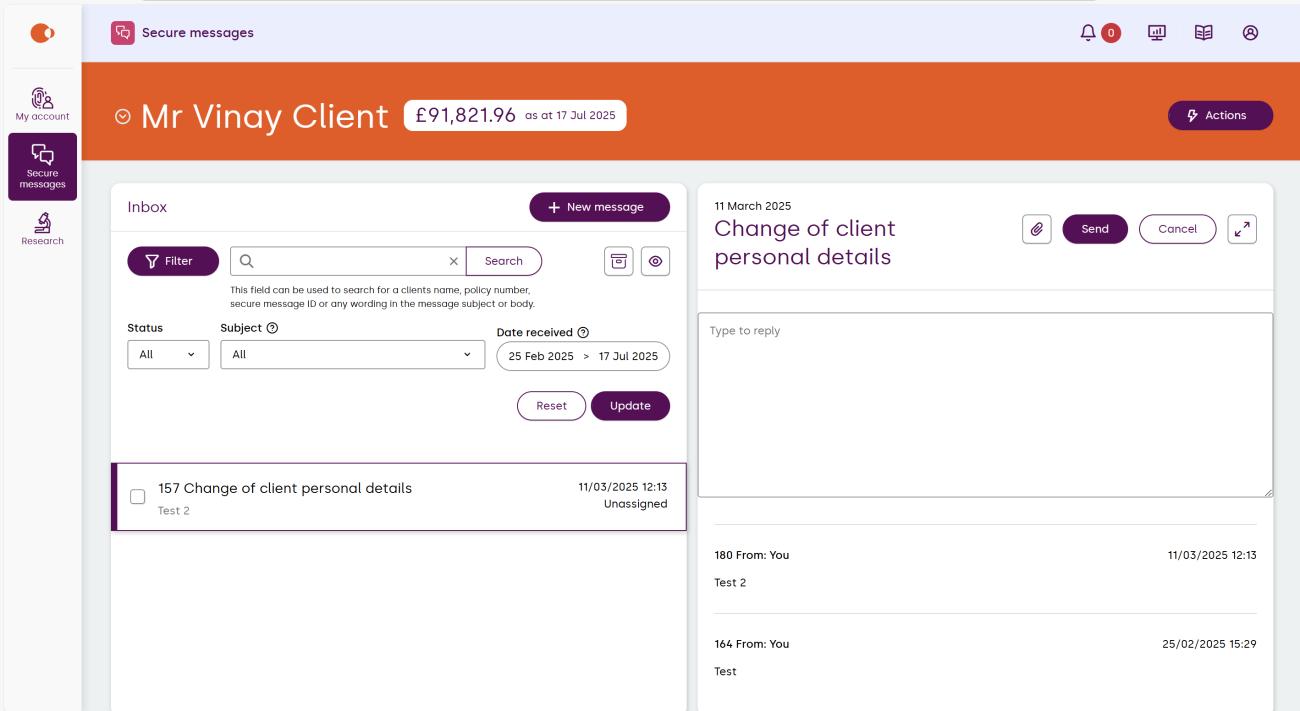
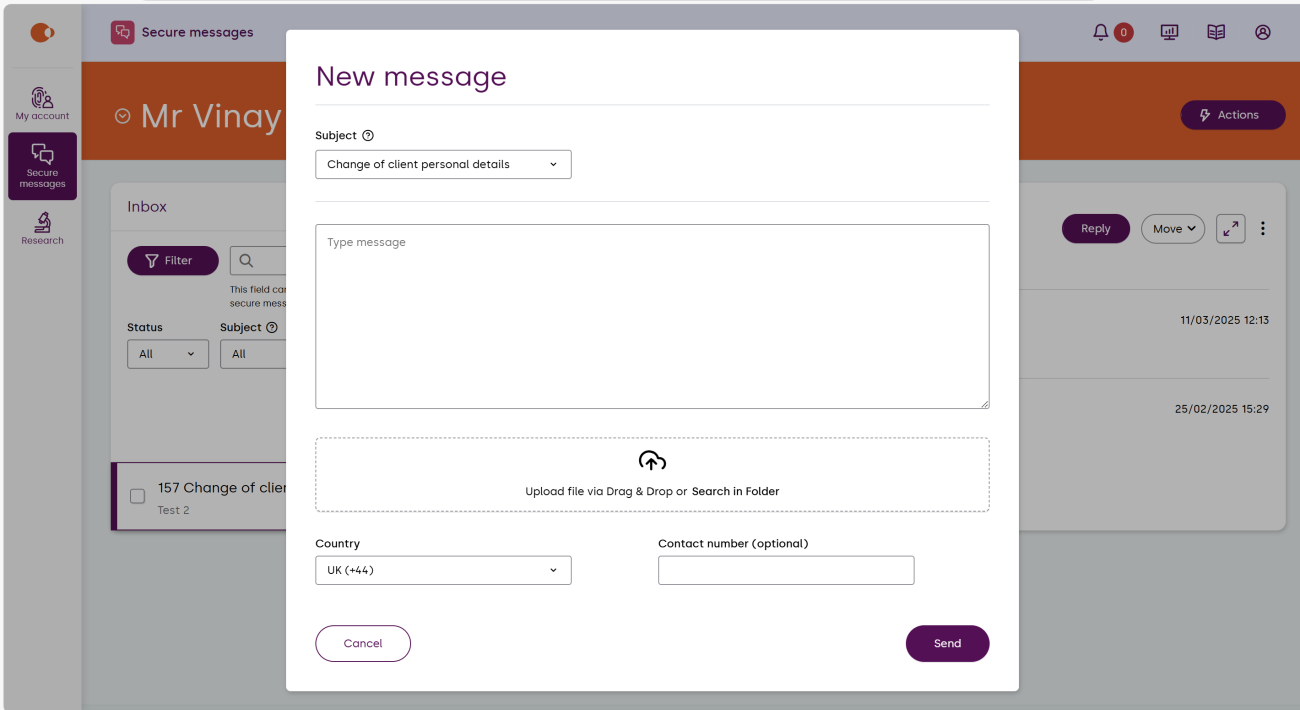
Selecting the secure messages app will take you to your inbox. You can:
- filter by read or unread messages or by a specific subject
- choose to view messages between a particular date range
- select ‘New Message’ to begin a new message, enter the information requested, then select ‘Send’.
Not found the answer you're looking for?
Check out our FAQs page for all questions related to the new Nucleus Platform.